Microcom 428M Guida Utente Pagina 31: Information Capture
 1
 2
 3
 4
 5
 6
 7
 8
 9
 10
 11
 12
 13
 14
 15
 16
 17
 18
 19
 20
 21
 22
 23
 24
 25
 26
 27
 28
 29
 30
 31
 32
 33
 34
 35
 36
 37
 38
 39
 40
 41
 42
 43
 44
 45
 46
 47
 48
 49
 50
 51
 52
 53
 54
 55
 56
 57
 58
 59
 60

Visitor Administration User Guide
31
Information Capture
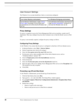
Registering the Touch-It Software
Before using the virtual keyboard, it must be registered.
1.
You may access the setup in one of the following ways:
a.
Click the Start button, then select
All Programs > Touch-It Virtual Keyboard > Register
.
b.
From the Touch-It menu on the virtual keyboard, select
Setup
.
The Touch-It Setup window will appear.
2.
Under Licenses, in the
Name
field, type the name obtained from the registration exactly as it
appears.
3.
In the
Key
field, type the key obtained from the registration.
4.
Click [Save].
Information Capture
Photographs of visitors are taken when they arrive for their visit.
Photograph
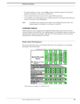
To capture the visitor photograph, it is necessary to properly install and configure a camera for the
Kiosk. The camera currently supported is the Logitech QuickCam Orbit AF.
Currently, drivers for these cameras are only supported on Windows XP.
Setting Up the Camera
1.
Insert the CD provided with the camera and run the installation program.
2.
Connect the USB cable provided with the camera to a USB port and Windows will install the
camera.
Be sure to consult the manufacturer documentation.
Automatic Cropping
Automatic cropping occurs to frame the face and shoulder area of the subject, and is relative to the
location of the eyes. The cropped image area and aspect ratio are pre-configured. If necessary, the
image will be rotated such that the eyes are level in the photograph.
For proper function of this feature:
•
The subject’s eyes must be visible.
•
There should only be one face in the image.
•
A plain background must be used.
•
The image includes the subject’s head and at least the top of the shoulders.
In cases where automatic cropping does not function properly, the crop window will appear and you
will be able to manually drag it to the correct position.
File PDF · ·
Domande su Microcom 428M
Non ci sono ancora domande su questo manuale. Fate la prima.
Prodotti e manuali riguardanti Stampa e scansione Microcom 428M
- Stampa e scansione Microcom 1400 Specifiche
 (53 pagine)
- Stampa e scansione Microcom 428TM Manuale Utente
(22 pagine)
- Stampa e scansione Microcom LDS II Guida Utente
(54 pagine)
- Stampa e scansione Microcom 2150 Scheda Tecnica
(10 pagine)
- Stampa e scansione Microcom 2150 Manuale Utente
(9 pagine)
- Stampa e scansione Microcom 424M Manuale Utente
(6 pagine)
- Stampa e scansione Microcom 326M Manuale Utente
(15 pagine)
- Stampa e scansione Microcom 814M Manuale Utente
(17 pagine)
- Stampa e scansione Microcom 412 Manuale Utente
(18 pagine)
- Stampa e scansione Microcom LDS II Manuale Utente
(121 pagine)